The Suno to Spotify Pipeline: Turn Any Text Into a Published AI Music Video
The full AI music video pipeline - Suno, Gemini, Veo, and DittoMusic - to take one line of text all the way to a song on Spotify. The exact steps, the real prompts, and the honest royalty numbers.
Austin Tanner
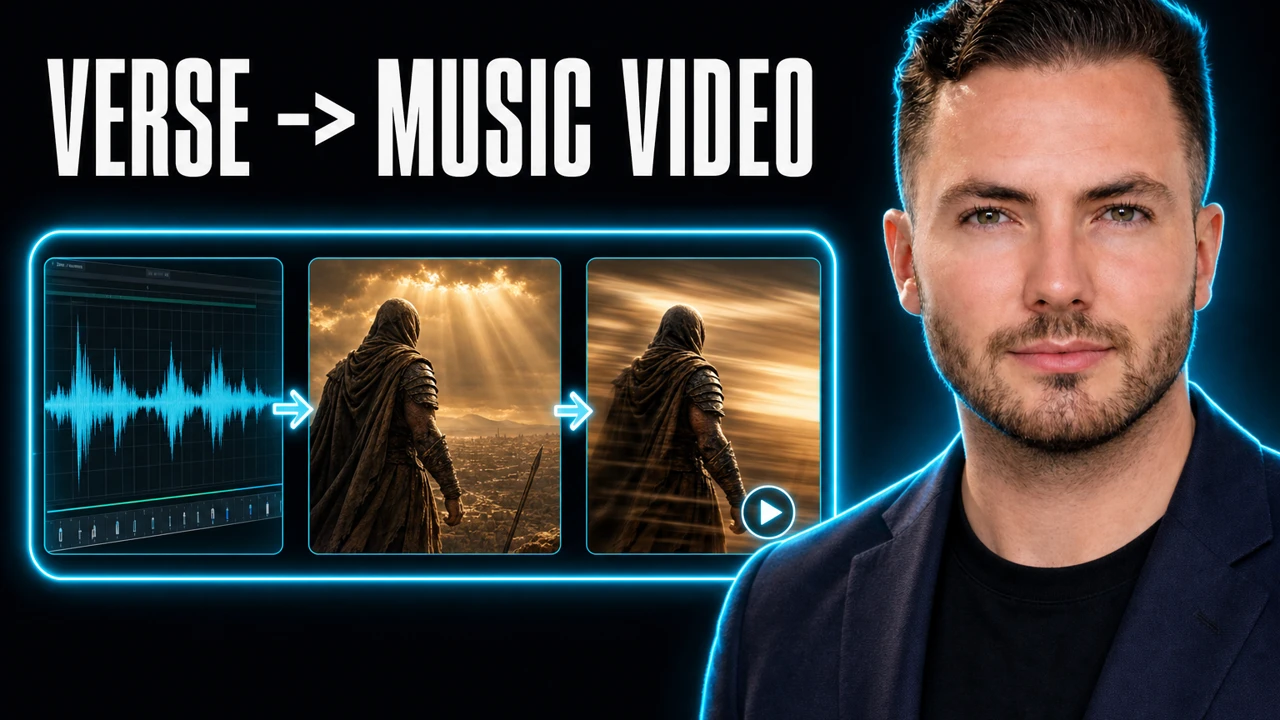
By the end of this guide you will know how to turn one line of text into a finished, published AI music video: an original song, AI cover art, an animated scene, and a release on Spotify and YouTube Music. No band, no studio, no design skills. This is the exact Suno to Spotify pipeline behind the Holy Arsenal catalog, start to finish, including the honest part most tutorials skip: what it has actually earned so far.
Want the exact prompts? The free AI Music Video Pipeline Pack gives you the brief, the style formula, the lyric guide, and copy-paste templates for every step below, so you never start from a blank page.
Grab the free pack →What you are actually building
The end result is a single, repeatable asset: a square cover, a short looping animation, and an original song, assembled into one video that plays on YouTube while the same track earns royalties on Spotify, Apple Music, and YouTube Music.
The whole thing runs on a simple idea. One starting text sets the theme, and every other piece is generated to agree with it. You decide the feeling once, in a short brief, and the song, the art, and the motion all inherit that direction. That is what keeps an AI music video from looking like four unrelated tools stapled together.
It works on anything: a Bible verse, a poem, a famous quote, a speech, or lyrics you wrote yourself. The walkthrough above uses an original, secular line to prove the pipeline is not tied to any one genre or theme.
The tools (and what each one does)
Six tools carry the whole pipeline. You can swap most of them, but this is the stack used in the walkthrough.
| Tool | Job in the pipeline | Cost |
|---|---|---|
| Claude (in Vibe Deck) | Writes the brief, builds the brand doc, edits files, removes watermarks, assembles the clip | Free tier; paid for heavy use |
| Suno | Generates the original song from a style string and lyric sheet | Free tier; paid for downloads |
| Gemini (or GPT Image) | Generates the cover art and the thumbnail from an image prompt | Free tier |
| Google Veo / Flow | Animates the thumbnail into a short looping scene | Free tier; paid for volume |
| DaVinci Resolve (or Claude) | Combines the looping video with the song | Free |
| DittoMusic | Distributes the track to Spotify, Apple Music, YouTube Music, and 150+ stores | ~$29 / year |
A note on the workspace: in the video the work happens inside Vibe Deck, a Windows app that runs Claude Code in a project folder. The advantage is context. You drag the pipeline pack into the workspace, the assistant already knows where it is and what the templates mean, and you can drive the whole brief by voice. The model used is Opus 4.8 on high effort. Any setup that runs an AI assistant with access to your files will work; the folder-aware workspace just removes friction.
Step 1: Write the brief (the two minutes that make everything agree)
Before any song or art, you make three decisions. The brief is where they live, and it is the single most important step in the pipeline.
- Archetype. The core idea. What is this piece actually about?
- Emotional posture. The feeling. Defiant, triumphant, stoic, reverent, awed.
- Visual anchor. A concrete image the art and motion can lock onto.
You do not have to invent these cold. In the walkthrough, the assistant is asked to initiate the program, it reads the pack’s brief template, and then generates a complete brief on its own. The result of one run: a source line (“the whole light shrank to a coin, and the surface forgot my name”), an archetype of a long descent into the deep, a posture of awe, and a visual anchor of a lone diver suspended in black water beneath a single failing column of light.
That is the lesson worth stealing: let the AI draft the brief, then steer it. A single instruction (“make it secular, no biblical references, just genuinely good music”) was enough to redirect the entire project. Once you approve the brief, have the assistant generate a short brand document: a name, a scope, positioning, a brand story, and the visual identity. The walkthrough lands on a brand called Fathomless with the scope Elemental Sublime. Everything downstream now has one coherent identity to follow.
Step 2: Generate the cover art and thumbnail (Gemini)
Here is the distinction that trips people up, so get it straight before you generate anything:
- Cover art is square, ideally 5000 by 5000. This is what appears on Spotify, Apple Music, and YouTube Music.
- Thumbnail is 16:9. It is your YouTube thumbnail, and, just as importantly, it becomes the reference image you feed into Veo in the next step.
Ask your assistant to produce both prompts from the brand document. Take the master image prompt into Gemini (or GPT Image, or whatever image model you prefer), paste it on the image tab, and generate. Iterate until it is right. Models sometimes hallucinate stray text onto the image or invent a title overlay you did not ask for; when that happens, regenerate rather than fighting it. Download the clean square as your cover and the 16:9 as your thumbnail.
If the image carries a Gemini watermark, do not reach for a separate tool. Drag the file into your AI workspace and ask it to remove the watermark. In the walkthrough, Claude strips it directly.
Step 3: Create the song (Suno)
This is where the brief pays off. In Suno, create an account and a fresh workspace, then use the two assets the pack template formats for you:
- Paste the style string into the Styles field.
- Paste the lyric sheet into the Lyrics field.
- Click create, and generate a few samples.
A few practical lessons from the build:
- Generate several versions. The first usable take is rarely the first generation. Sample a handful and keep the best.
- Treat the sliders with respect. The weirdness and style-influence sliders are tempting, but push them into the high hundreds and the song goes audibly janky. Small adjustments only.
- You can go deeper. Suno lets you pick different models, and even train a custom model or upload your own voice if you want a consistent signature sound.
- Download as WAV for the best quality (MP3 is also available). This is the file you will distribute.
The single biggest quality move for AI vocals is in the style and lyric formatting, which is exactly what the pack’s template handles. That is the difference between a track that sounds like a robot and one that sounds like a release.
Step 4: Animate the scene (Veo) and remove the watermark
Now you make the short clip that loops behind the music. Use Google Veo, or the Flow editor on top of it.
Create a new project and drag in the thumbnail, not the cover. This is the moment that 16:9 file earns its place. Paste the motion prompt from the bottom of your song document, set the duration (10 seconds is plenty for a loop), pick the fast model (Omni / Veo flash), and generate. You get a short animated scene built from your still, designed to loop seamlessly while the song plays.
Veo adds its own watermark. Remove it the same way you handled Gemini: drag the video into your AI workspace and ask the assistant to strip the watermark off the generated clip.
Step 5: Assemble the final video
You have three files now: the song, the looping animation, and the cover. Combining them takes one of two paths.
- The fast path: drag the song and the video into your AI assistant and ask it to combine them, looping the video until the song ends. In the walkthrough, Claude does exactly this and outputs the finished video.
- The control path: drop everything into a video editor like the free DaVinci Resolve, lay the audio under the looping clip, and export at full resolution. Use this when you want titles, captions, or transitions.
If you want extra polish such as animated text or motion graphics, you can take it further by asking your assistant to research a motion framework, draft an implementation plan, and build the effects once you approve. For a first release, the simple loop is enough.
Step 6: Release it on DittoMusic
A finished video on YouTube is nice. A released track that earns royalties everywhere is the point. The walkthrough uses DittoMusic: about $29 per year for unlimited releases under one artist.
The release flow:
- Create your artist profile, including a profile image. This is why the thumbnail is reusable; turn it into a logo or artist image.
- Create a new release and give it a title.
- Upload the song, add any license you hold, and upload your cover art. Cover art must be a JPEG, so if yours is a PNG, ask your assistant to convert it.
- Fill in the metadata: copyright, a preview clip, and the rest of the fields.
- Choose your release date. The standard option goes live in roughly 10 days; paid options expedite it. Set your per-track price tier if prompted.
- Click release. In about 10 days the track is live on Spotify, YouTube Music, Apple Music, and the rest.
That is the full loop. Once the system is built, every new song is just a re-run of the same six steps.
The honest royalty numbers
Most tutorials stop at “and now you’re a recording artist!” Here is the part that actually respects your time.
Across the Holy Arsenal catalog, the real earnings so far are $5.37 total, which includes $3.84 from YouTube Music, across 841 lifetime streams. The artist dashboard shows 40 releases, 64 tracks, and 369 streams in the last 90 days.
The honest point. No single AI song is going to pay your rent. The value is the system: a repeatable pipeline that lets you ship a growing catalog of tracks that each earn a little, forever, with almost no marginal cost per release.
Build your own catalog →Think of it the way the channel does: throwing darts. You are not betting everything on one track. You are building an asset base, cheaply and quickly, where the upside is uncapped and the downside is a few hours and a $29 distribution fee. One song that catches changes the whole math, and until then the catalog quietly compounds.
Who this pipeline is for
This works for a wider range of people than “musicians”:
- Faith and devotional creators turning scripture or sermons into music, like the Holy Arsenal project.
- Poets and writers who want to hear their words as finished songs.
- Content creators who need original, royalty-free background music they actually own.
- Marketers and brands building a sonic identity without licensing fees.
- Anyone with a quote, a speech, or a lyric and an afternoon to learn the system.
The skill you are really building is not music production. It is directing AI tools to agree with each other from a single brief, which is the same skill behind every good AI workflow.
Start with the prompts that make this work. The free AI Music Video Pipeline Pack is five AI-readable files: the brief, the style formula, the lyric guide, the image and motion prompts, and the templates. Download it, point your AI assistant at it, and run your first track today.
Download the free pack →Frequently asked questions
How do you get a Suno song onto Spotify?
You distribute it. Suno makes the audio but does not put your track on Spotify for you. Download the song as a WAV or MP3, then upload it to a distributor like DittoMusic with square cover art and your metadata. The distributor delivers it to Spotify, Apple Music, YouTube Music, and 150-plus platforms, usually live in about 10 days.
Can you actually make money with Suno music on Spotify?
Yes, but the early numbers are small and worth being honest about. Across the Holy Arsenal catalog the real total so far is $5.37 from 841 lifetime streams, including $3.84 from YouTube Music. The point is not one viral song, it is a repeatable system that builds a growing catalog earning royalties for years.
What tools do you need for the Suno to Spotify pipeline?
Six: an AI assistant like Claude to write the brief and handle file edits, Suno for the song, Gemini or GPT Image for the cover art and thumbnail, Google Veo or Flow for the animated scene, a way to assemble the clip such as DaVinci Resolve or Claude itself, and DittoMusic to distribute. Most have a free tier; DittoMusic is about $29 per year.
What is the difference between the cover art and the thumbnail?
The cover art is square (5000 by 5000) and is what shows on Spotify and other music apps. The thumbnail is 16:9 and does two jobs: your YouTube thumbnail, and the reference image you feed into Veo to generate the animated scene. Same brand, different files, different aspect ratios.
How do I remove the Gemini or Veo watermark?
Drag the watermarked image or video into your AI workspace and ask the assistant to remove the watermark. In the walkthrough, Claude strips the Gemini image watermark and the Veo video watermark directly. Only do this on output you have the rights to use.
Do I have to use scripture or religious text?
No. The pipeline works on any text: a poem, a quote, a speech, or your own lyrics. The starting text only sets the theme; the brief turns it into a direction the song, art, and video all follow.
That is the entire Suno to Spotify pipeline, nothing cut: one line of text to a published, royalty-earning AI music video. Run it once to learn it, then run it on anything you want. When you are ready, grab the free pipeline pack so the prompts are done for you, or book a call if you want AI systems like this built for your business.